Monday, August 1, 2022

Find where your colleagues are on a floor plan

Microsoft Search helps users find relevant content, the right answers or people. Search administrators use their knowledge of the organization and its users to make it easy for users to find the relevant content. This blog post will cover how you can prepare information about employees in order to place them on a floor plan for the office buildings. 

This type of setup is part of my mindset of using as many features as possible from the Microsoft 365 licenses, often triggered through configuration and maintenance of information which provides value throughout the product line.


This kind of functionality will add value when searching for colleagues in the office landscape, or even when searching for the closest meeting room.

Monday, July 25, 2022

Autopilot - Device deadlock between two tenants

After wiping a Windows10 Autopilot device from Microsoft Endpoint Manager, we got welcomed to the correct tenant by name and logo. When signing in with a current licensed user, we got the message saying "That username looks like it belongs to another organization. try signing in again or start over with a different account". Time to troubleshoot!

The background for the wipe was to repurpose the device for a new user. 


Windows Autopilot is managed and maintained by Microsoft in a backend database that associates hashes with customer tenants. This time I got a schizophrenic device dealing with two tenants.

Monday, July 18, 2022

Disable "Do Not Send a Response" option in Outlook with MDM

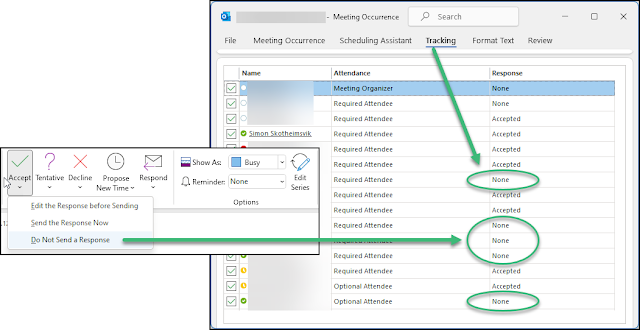
When users select the option to not send a response when accepting a meeting invite in Microsoft Outlook, their response is not visible for the invitee. This makes it troublesome to keep track of attendees for the meeting. This is why many organizations want to disable this option. 

If someone replies to a meeting invite by using the "Do Not Send a Response" option, the action is marked in the users calendar, but it will not reflect in the meeting tracking visible for invitees.


The problem has been present for a long time, and there has been some information available on how this can be solved by use of Group Policies in legacy Active Directory environments. Here's how to remove the option to not send a response on meeting invites using Configuration Policies in Microsoft Endpoint Manager and a Settings Catalog profile type.

Tuesday, July 12, 2022

Posten inn i Homey

Inspirert av lærdommen fra prosjektet med å få Min renovasjon inn i Homey har jeg kastet meg over Posten sin løsning for å se om jeg kan få lest inn postbudets rute som variabler i min Homey.

Posten.no

Posten leverer nå ut post annenhver dag. Dette betyr postombæring mandag, onsdag og fredag den ene uken og tirsdag og torsdag den andre uken. Det kan jo være mulig å enkelt reprodusere denne takten ved hjelp av oddetall og partalls uker. Men - posten har jo laget en egen webside hvor man kan slå opp når man kan forvente post utlevert: https://www.posten.no/levering-av-post. Dette betyr kanskje at det kan oppstå uregelmessigheter her - og det må jo fanges opp av et smart hus.

Monday, July 11, 2022

Automatic file upload from legacy server to Microsoft 365

Companies that have gone through several generations of IT systems will have to make their cloud journey in small steps - system by system. Devices and document storage are quickly moved to Microsoft 365. Special Line of Business systems may take longer to cloudify. This can present challenges in making data from dinosaur systems available to users of the modern Microsoft 365 platform.

The challenge from a real world scenario

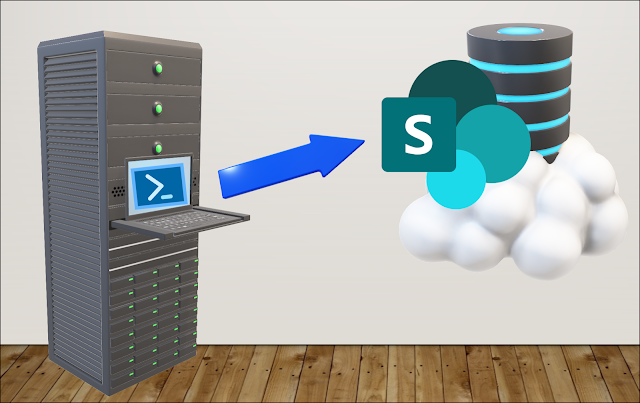
I was challenged by a customer with a production environment running in an old on premises environment while all users and endpoints had converted to Microsoft 365. They had challenges in reaching reports that were produced on premises and needed a solution to have this data automatically uploaded to Sharepoint for easy and modern access. Challenge accepted!

Wednesday, July 6, 2022

HP Connect for Intune, Part1: BIOS Update

To be certain we have a secure system from chip to cloud, it is fundamental to boot device from a trusted BIOS - often referred as secure boot. HP Connect for Microsoft Endpoint Manager is a cloud application designed to ease the management of UEFI BIOS on supported HP systems. This blog post will cover updating the BIOS on HP devices using MEM.

We need to have control of the boot environment of our managed devices

Please note: This is not a sponsored post!

Tuesday, July 5, 2022

Fortinet VPN Profile distribution with MDM

Fortinet Document Library has a documented routine for distributing the FortiClient application with Intune to Microsoft Windows. This routine is working Ok, but it is missing information on how to distribute the VPN profiles to the client. This will be the topic for this post.

Installation of the FortiClient application

Please read and follow the document in Fortinet Document Library covering the topic of configuring the FortiClient application in Intune. During this routing you need to download the current FortiClient VPN client and start the downloaded EXE file to download the actual MSI installation. This could be wise to do in a Windows Sandbox environment. You will find the MSI file in the newest folder with {randomguid} name under %localappdata%\Temp\.

After this routine has been setup and you have the app distributed to a group and installed, you will find the application available in the system tray on the devices.
FortiClient without VPN profile

The problem here, is the missing VPN profile for connecting your client to the service.

Monday, July 4, 2022

Min Renovasjon inn i Homey

Jeg har lenge ønsket å få informasjon fra vårt renovasjonsselskap RIR inn i mitt smarthus slik at jeg kan få målrettet varsel om dette sammen med annen varsling som huset gir oss. I forbindelse med at Homey slapp funksjonen advanced flow 01.07.2022, kom det ett innlegg i facebook gruppen Athom Homey Norge fra Vegard Hamar som viste en metodikk for å få dette på plass. Det krevde litt spekulasjon for å kunne gjenskape dette. Legger her ut mine notater slik at kanskje flere kan ha glede av dette.

Min Renovasjon

Vårt renovasjonsselskap RIR benytter løsningen Min Renovasjon for varsling av tømmedager. Vegard Hamar skriver i sitt Facebook innlegg at han har hentet inspirasjon fra et GitHub prosjekt for Home Assistant som går mot Min Renovasjon

Tuesday, June 28, 2022

Install printers from AD printserver on AAD joined computers

When you go from a traditional IT operation model to modern based on Azure AD and Endpoint Manager, you will have a migration period with resources in both camps. Typically, endpoints first go to the cloud while well-established services lag behind. 

This does not have to tie the endpoints to the ground. You can move your computers to pure Azure AD join, and still have access to on-premises services in Active Directory as long as the identities are hybrid. 

Some tend to use Hybrid Azure AD Join (HAADJ) since they have some legacy traditions of device and application management. HAADJ can thus be tempting, but in the long run it will give more headache than pleasure. The best approach is to move the endpoints to pure Azure AD Join devices and then put more effort into adapting to the new operational environment offered by Microsoft Endpoint Manager.

Printers and print servers are one example of services that tends to be strongly attached to the premises, even though there are great alternatives in the cloud with Microsoft Universal Print or 3rd parties like Printix. With the hybrid identity signed in to the Azure AD joined Windows device, you can also use the existing Active Directory joined print server. I have created a Powershell script which can be used with Microsoft Endpoint Manager to distribute printers on a print server to Azure AD joined computers. This can be a great approach to make the move to the cloud more resilient, even though you will lose much of the borderless functions from a pure cloud-based print solution.

The script is available on my GitHub

Saturday, June 25, 2022

Windows 11 - Customize the Start menu layout

I believe the workday can be a tad less cluttered if certain stuff have a fixed placement. In a managed environment there might be interesting to have a customized start menu layout for all users giving a default set of pinned apps in a fixed order. This blog post will walk you through the routine of setting this up on Windows 11 by use of Microsoft Endpoint Manager.

Note: A customized start menu layout overwrites the entire existing layout. A partial locked layout like offered on Windows 10 is not available on Windows 11. The layout can be changed by the user.

Create a JSON settings file

Set up your preferred Start menu layout on an existing Windows 11 computer. Pin the apps you like on the start menu and arrange the order of these apps.
Configure a preferred start menu layout on an existing Windows 11 device


Start Windows Powershell and export the configuration to a JSON file.

Friday, June 24, 2022

Windows 11 - Custom theme with MEM

If your company has a strong branding profile, you might be interested in assigning a custom desktop theme pack to your Windows 11 computers reflecting your brand. I have put together a simple routine for distributing a deskthemepack with Microsoft Endpoint Manager.

Design your preferred theme

Use the Settings app on a Windows 11 computer to design your preferred desktop theme. After setting a preferred background, sounds, colors and mouse cursors, you can save this as a named theme.

You now have this as a theme on your computer which can be exported for sharing. Save this as a file on your computer.

Tuesday, June 21, 2022

Rename computers with countrycode in Intune

During an engagement at a customer there was a demand of having all computers in Endpoint Manager/Intune renamed to a naming standard including the two character ISO country code from the device owner followed by the serial number of the device. This was solved by using Graph API in a Powershell script running in an Azure Runbook.

The mission

The mission is to have all Windows devices in Microsoft Endpoint Manager follow a specified naming standard giving the device a unique name consisting of a country code and the device serial - ie: NO-132435465768. The solution must address existing and new devices.

The challenge with this design is related to compiling a device name consisting of the country code found at the user owning the device and the serial found on the device it self. I have found examples online for renaming endpoints, but these did not get hold of the country codes from the user to use as part of the new device name. Some of these examples include:

New devices - autopilot profiles


During the initial phase of this project, I did design a configuration for Autopilot allowing the devices to start out with the correct device name upon the initial onboarding. This was based on several group tags matched with corresponding AutoPilot profiles. A specialized menu was built in order to ease the hash collection and at the same time have the group tag specified.

image
Menu used for selecting country code when getting the hardware hash code

This did work as expected for new computers. The CSV hash file got a Grouptag specified pr. device based on the operators choice when collecting the hash. When uploaded to Intune, the Grouptag did match with an Azure dynamic device group which in turn was targeted towards the corresponding autopilot profile setting the correct name on the device.

Although this was a full-blown technical solution, it didn't live up to the expectations of easy implementation from the first line helpdesk. The setup was therefore reversed leaving one common autopilot profile for each and every windows device in the tenant.

Existing devices - renaming with script

Initially this was thought as a one shot run to rename existing devices. As the first phase of naming new machines during Autopilot was neglected, the challenge is somewhat extended to do renaming of devices on a regular basis. This has led to a Powershell script running in an Azure Runbook on a schedule once pr. day.

Pseudo code

The script has a hash table with current countries. The script will recure the country list selecting all users belonging to each country and further on list each device belonging to those users. Attributes from the user gives access to information about the country, while attributes from the device gives information about the serial number. The script takes into account the maximum length of 15 characters for computer names. This gives the fundaments for renaming the computer to the given naming standard. A rename will be initiated if the existing computer name differs from the standard.

Azure App Registration

The script authenticates through an Azure App Registration which has the following Microsoft Graph API application permissions:

  • DeviceManagementManagedDevices.PrivilegedOperations.All
  • DeviceManagementManagedDevices.ReadWrite.All
  • Directory.Read.All
  • User.Read
The app secret for the app registration is created with powershell in order to have extra life time:
    $startDate = Get-Date
    $endDate = $startDate.AddYears(9)
    $ObjectID = 'XXXXXXXX-XXXX-XXXX-XXXX-XXXXXXXXXXXX'
    $aadAppsecret01 = New-AzureADApplicationPasswordCredential -ObjectId $ObjectID -StartDate $startDate -EndDate $endDate
    ($aadAppSecret01).Value

Azure Runbook

The TenantID, ClientID and ClientSecret from the app registration are stored as encrypted variables in the Azure Runbook.
Encrypted variables stored in the runbook

The runbook does have most of the modules loaded already, except for the Microsoft.Graph.Authentication module which has to be added from the Gallery.

The script can now be added, published and linked to a schedule in the runbook. The script is available on my Github, and it has some comments throughout the code describing the process.

<#

  .NOTES
  ===========================================================================
   Created on:      09.05.2022
   Created by:      Simon Skotheimsvik
   Filename:        MEM-ChangeOfComputerNames-Runbook.ps1
  ===========================================================================
 
  .DESCRIPTION
    This script uses the Graph API to bulk rename Windows devices. It can for
    example be used in a scenario where autopilot default naming has been used
    and a new standardised naming convention has been agreed upon. This Script
    will use the Country Code from the owning users Azure Account. It can be
    modified to use other user variables as well.

    The script is designed to run unattended in an Azure Runbook.
     
  .EXAMPLE
    MEM-ChangeOfComputerNames-Runbook.ps1

#>

$GLOBAL:DebugPreference="Continue"

$Countries = @{
    Norway = "NO"
    Vietnam = "VN"
    Brazil = "BR"
    Chile = "CL"
    Croatia = "HR"
    India = "IN"
    Italy = "IT"
    Poland = "PL"
    Romania = "RO"
    Singapore = "SG"
    Canada = "CA"
}

# CONNECT TO GRAPH WITH AZURE APP-REGISTRATION STORED AS ENCRYPTED VARIABLES
$TenantId = Get-AutomationVariable -Name 'Computer_Rename_TenantID'
$ClientId = Get-AutomationVariable -Name 'Computer_Rename_ClientID'
$ClientSecret = Get-AutomationVariable -Name 'Computer_Rename_ClientSecret'

# Create a hashtable for the body, the data needed for the token request
# The variables used are explained above
$Body = @{
    'tenant' = $TenantId
    'client_id' = $ClientId
    'scope' = 'https://graph.microsoft.com/.default'
    'client_secret' = $ClientSecret
    'grant_type' = 'client_credentials'
}

# Assemble a hashtable for splatting parameters, for readability
# The tenant id is used in the uri of the request as well as the body
$Params = @{
    'Uri' = "https://login.microsoftonline.com/$TenantId/oauth2/v2.0/token"
    'Method' = 'Post'
    'Body' = $Body
    'ContentType' = 'application/x-www-form-urlencoded'
}

$AuthResponse = Invoke-RestMethod @Params

$Headers = @{
    'Authorization' = "Bearer $($AuthResponse.access_token)"
}

# Connect-MgGraph with Token in order to be able to post a computer renaming
$connection = Invoke-RestMethod `
    -Uri https://login.microsoftonline.com/$TenantId/oauth2/v2.0/token `
    -Method POST `
    -Body $body
 
$token = $connection.access_token
Connect-MgGraph -AccessToken $token

write-output "Authentication finished"

############################################################
# ROUTINE FOR RENAMING USERS AUTOPILOT DEVICES
############################################################

foreach ($CountryCode in $Countries.keys) {
    write-output "Working on country $CountryCode"
    $Country = $CountryCode
    $CountryCode = $($Countries[$Country])
    $MaxSerialLength = (15 - $CountryCode.get_Length())-1 #Max 15 characters allowed in devicename. Calculate length of serial# part.
    $userList = $Null

    # Get all users with the current country code. Use paging in order to get more than 999 which is max pr query
    $UsersURL = 'https://graph.microsoft.com/v1.0/users?$filter=startswith(country,'''+ $Country +''')&$top=999'
    While ($UsersURL -ne $Null) {
        $data = (Invoke-WebRequest -Headers $Headers -Uri $UsersURL -UseBasicParsing) | ConvertFrom-Json
        $userList += $data.Value
        $UsersURL = $data.'@Odata.NextLink'    
    }

    # Get all managed devices for each user
    foreach ($User in $UserList) {
        $upn = $User.userPrincipalName
        write-output "- Focus on user $upn"
        $DeviceList = $Null
        $deviceURL = 'https://graph.microsoft.com/v1.0/users/'+ $User.userPrincipalName +'/managedDevices?$filter=startswith(operatingSystem,''Windows'')'
        $DeviceList = (Invoke-RestMethod -Uri $deviceURL -Headers $Headers).value
        $NoOfDevices = $DeviceList.Count
        write-output "- $NoOfDevices device(s) found"

        foreach ($Device in $DeviceList) {
            $CurrentDeviceName = $Device.deviceName
            write-output "--- Focus on device $CurrentDeviceName"
            $OS = $Device.operatingSystem
            $DeviceID = $Device.id
            $FullSerial = $Device.serialNumber

            # Max 15 characters allowed in devicename - Some devices have to long serialnumber
            if ($FullSerial.get_Length() -gt $MaxSerialLength) {
                $DeviceSerial = $FullSerial.substring($FullSerial.get_Length()-$MaxSerialLength)
                write-output "---- Serial too long - shortened!"
            }
            else {
                $DeviceSerial = $FullSerial
            }
            # Calculates new devicename in format NO-12345678
            $CalculatedDeviceName = $CountryCode.ToUpper() + '-' + $DeviceSerial
           
            # Virtual computers have the text "SerialNumber" as serialnumber...
            if (($CurrentDeviceName -ne $CalculatedDeviceName) -and ($DeviceSerial -ne "SerialNumber")) {
                write-warning "---- Device $CurrentDeviceName needs to be renamed to $CalculatedDeviceName"
                # Calculate graph api url's
                $Resource = "deviceManagement/managedDevices/$DeviceID/setDeviceName"
                $GraphApiVersion = "beta"
                $URI = "https://graph.microsoft.com/$GraphApiVersion/$($Resource)"

                $JSONPayload = @{
                "deviceName" = $CalculatedDeviceName
                }

                $convertedJSONPayLoad = $JSONPayload | ConvertTo-Json
               
                #Send change to Graph.
                Invoke-MgGraphRequest -Uri $URI -Method POST -Body $convertedJSONPayLoad -Verbose -ErrorAction Continue
            }
            else {
                write-output "---- $CurrentDeviceName will not be renamed"
            }
        }
    }
}


Verify the results

When running the script, all outputs can be found in the logs, and all renamed computers are logged as warnings:

Feedback from the script with renamed computers found as warnings

This is reflected on the device in the Microsoft Endpoint Manager:

Device waiting to be renamed

As with other renaming requests in Microsoft Endpoint Manager, it requires the device to reboot before all registers (AzureAD, Intune, AutoPilot, Device) are up to date.

Device rename confirmed in the portal

Summary

This routine will effectively and automatically rename devices on a given schedule as long as the app secret is valid. The script can be altered to mix and match variables from user and device in order to create the corresponding device name for your naming convention. You can for example use information from the user like department, company, region, postalcode as a part of the computername.

No extra charge for the mistakes - solution shared as it is - use it at your own risk.

Thanks for reading - please share and comment.


Thursday, June 2, 2022

Reduce background noice in Teams Room System

It has been a while since Microsoft released their machine learning based noise suppression for Microsoft Teams. With this setting available all background noise like shuffling papers, slamming doors, barking dogs, and so on are effectively reduced. This technology has quickly fallen into our pattern of use - which in turn has led to expectations of finding this in the meeting rooms

The new hybrid workspace is the hottest trend right now. At any time, a hybrid workplace will consist of both remote workers and in-office workers. Synchronizing these groups of employees into a cohesive, collaborative unit can be quite a challenge in order to not leave one group feeling anonymized or voiceless. 

Microsoft Teams rooms should bring organizations closer to the ideal of hybrid work giving remote side workers the same opportunities to actively participate in the meeting. We see constant developments to support this, like the recent Front Row Layout for meetings. 

As a remote worker, I often find unintentional noise from meeting rooms to be the biggest disturbance in meetings. This can be all from paperwork, pens and fingers drumming on the table, cups and cutlery, small talk and meeting in meetings. I am therefore happy to finally see machine-based noise cancellation available on the Teams Rooms System.

When in a call, settings for noise suppression are now found on the meeting room controller:

Click on the image for a larger view

Teams offers three levels of noise suppression to help keep meeting participants focused. These settings can be changed at any time. For the Teams desktop app and iOS, the settings carries over to the next meeting or call once they are changed. This is not yet the case for Teams Room System. 

The noise suppression feature can be enabled or disabled on the Teams Room Device by use of the NoiseSuppressionDefault variable found in an XML Configuration file as described here

Click on the image for a larger view

The article describes several settings and how these can be implemented on devices in small and large scale. The documentation does not state how to set Low or High as the default setting. This has been discussed in this Twitter thread, where @MauroB94454117 states that the code implemented is ahead of documentation at this time. The documentation is missing the part on how to force noise suppression to Low or High settings. This is done with the following variables in the XML file which are tested and found Ok:

0 = Off
1 = Auto
2 = Low
3= High 

The following XML file gave me the highest level of noise suppression as the default state:

<SkypeSettings>
  <NoiseSuppressionDefault>3</NoiseSuppressionDefault>
</SkypeSettings>

 These are small steps to a better hybrid workspace in the modern workplace!

Hardware based noise suppression

Logitech Rally cameras are also introducing AI noise suppression enhancement algorithms in their firmware version 1.1.167. This is to improve video conferencing experience for remote participants. This update is available for download from the Logi webpages.

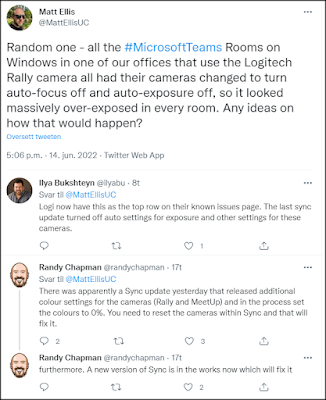
Normally updates of firmware and software brings new features and better security, but it also seems to introduce new unintentional problems - or "features". There are information in the community stating that the Logitech Rally Cameras might get problem with exposure and focus after updating. You can read about this on a fresh twitter message dialogue from Matt Ellis, Ilya Bukshteyn and Randy Chapman:

15.08.2022 - Video demo
Today a great video demo on this feature was released by ISDM Solutions - take a look here: https://youtu.be/gVvspCd0FaA