Showing posts with label Skype for Business. Show all posts

Monday, July 10, 2017

Corporate Headshots - Social Media for Business

First impressions will always be important, but now that we conduct so many of our initial interactions online, virtual personal branding has become as important as the firm handshake once was in introducing yourself to the world. Hence a corporate headshot is an opportunity to portray a brand image to potential customers.

In business we spend a lot of money on branding across logos, websites, literature, packaging and premises. Is the photographic representation of you and your coworkers the place to scrimp on branding? Probably not. Whether you are posting your headshot on you Companys website, or want to post it on social media pages, you are always representing your business in one way or another. A professional headshot will put confidence into you business and make your clients more willing to deal with you.

Think about it for a moment - if you were searching for a new supplier and found that a certain company was a very viable supplier, but the corporate headshots had an unprofessional style - would you be willing to deal with this company? If you want to get the most out of your digital presence, a professional corporate headshot will allow you and your colleges to achieve a good appearance.

Getting the most from your head shot

If you decide to make corporate headshots of you and your company, you will have to deal with a lot of questions related to dress codes, style of the images etc. You need to book a photographer and put up a schedule for your co-workers to get photographed.
Me doing corporate headshots of  a company

Pictures received - now what?

Once the photo session is finished you will receive a portfolio of pictures from the photographer. Now you need a plan how to distribute and use these pictures in order to give the best return of Investment.
Corporate Headshost received - time to distribute and use the pictures
Social Media has been a large consumer of headshots for a long time. We have also seen headshots as impersonators in corporate software for a while. The challenge now will be to utilize the new portfolio of headshots over the wide array of software og systems supporting personal portraits.

Active Directory, Exchange and Skype for Business

Portraits can be added to each user account in Active Directory as a thumbnail. There are several tools available for this operation out on the wild internet. We have preferred a PowerShell script to deal with this operation. Pictures are being adjusted and exported to a folder in the format of sAMAccountName.jpg. The Powershell script will then add the corporate headshot to the correct person in Active Directory. The debut of Exchange 2010 and Outlook 2010 made the portrait from AD available in Exchange Global Address list. All out of sudden the new headshots are available in the Outlook clients to all employees in the company.
Corporate Headshots available in Exchange and Outlook
The thumbnails uploaded to Active Directory will also be visible for colleagues in Skype for Business:
Corporate Headshots as viewed in Skype for Business
AD-integrated thumbnails in Skype for Business will only be visible to internal users. Federated users will not have read access to the picture stored in Active Directory. In order to make your thumbnail portrait visible to federated partners you need to tweak your Skype for Business to allow pictures from a website. With this option available we can pick a portrait available on the Internet as a thumbnail photo in Skype for Business.
In order to have a streamlined distribution of the corporate headshots, we have created a website on the Skype for Business server with all headshots available in correct format. The website is populated with images from the same Powershell script populating AD with thumbnail photos. This will give all users a Skype for Business uniform corporate portrait visible to everyone - internally and externally!
Example of Skype for Business meeting where pictures of federated users are missing

3rd party systems

The Powershell script used for distribution of the corporate headshots can easily be customized to distribute pictures to other 3rd party systems. The following list contains examples of 3rd party systems where the powershell script has been used for picture distribution.

Trio Enterprise

Trio Enterprise has options to have corporate headshots for each individual person registered in Company Directory. Company Directory can be set to synchronize with Active Directory, but the thumbnail photo from AD can't be directly synced to Company Directory. By customizing the PowerShell script for distributing the corporate headshots, we have managed to incorporate Trio Enterprise into the automated picture distribution. Here are some examples of pictures as they appear in Trio Enterprise:
Corporate Headshot in Trio Enterprise Attendant

Corporate Headshot in Trio Enterprise Web Assistant

Corporate Headshot in Trio Enterprise Web Assistant

Web based solutions

The pictures has also been distributed to 3rd party web based solutions with information based on AD giving phone lists, employee lists, organization charts, doorsigns etc. These are handy tools for new coworkers in the company to match names and faces. Some screenshots just as an example:

Organization Chart with headshots

Department list with headshots

Title list with headshots

User information with headshot

Doorsign template with headshot

Contact Card VCF file

The best way to distribute your contact card in a digital way, is by use of VCF Contact Cards. These cards can in fact also contain a portrait. This will effectively distribute the new portraits and updated personal details to your contact persons outlook and mobile phones. The PowerShell script used to distribute the Corporate Headshots can also distribute pictures to be used in a VCF Contact Card routine. I have earlier described a routine for setting the Outlook Auto Signature based on details in AD. This has in some circumstances been extended to give a shortcut to an downloadable VCF file with appropriate updated contact details - included a fresh user portrait!.
Outlook AutoSignature with shortcut to updated VCF file


VCF file with updated details and corporate headshot

Windows 10 Profile Picture

Some fantasy and creative use of PowerShell and Group Policy can also automatically distribute the Corporate Headshots from AD as profile picture in Microsoft Windows 10.
Corporate Headshot as profile picture in Windows 10. ScreenLock background is also centrally managed.

Corporate Headshot picture in Windows 10

Office365

Microsoft Office 365 has Corporate Headshots heavily integrated in all services and modules. We have expanded the Powershell script to distribute the corporate headshots also to this platform. This gives the platform an extra social profile.
An example of corporate headshots in Delve from Microsoft Office 365

Corporate Headshots and other graphical branding through scripting

Scripting and customization of your standard products used by your employees on a day to day basis can take your branding interests to a higher level. This blog post has focused on corporate headshots. It could have been considerable longer if I did include other graphical branding possibilities available in your standard products in use at the office. 

A security concern!

Please do remember - these are small steps helping you increase your security since it will give your services a branded look which differs from standard solutions!

I would love to help you with these concerns! Please comment if you have a good story, some needs or experience related to this topic!


Monday, July 3, 2017

Skype for Business shortcuts

Keyboard shortcuts are combinations of two or more keys that, when pressed, can be used to do a task that would typically need a mouse or other pointing device. This is convenient knowledge to have in order to work faster and more efficient.

Skype for Business have a lot of good shortcuts. This blog post will cover a few not so well-known shortcuts which i find extremely nice to be more effective in the day-to-day business. I guess everyone will take the shortcut once they know it's there?

  • Ctrl+Alt+Shift+3
    Open the main window and put focus in the search box. Extremely efficient when you need to get in touch with someone and can't find your Skype for Business window.
  • Ctrl+<1-4>
    Change focus between the different TAB's in Skype for Business main window.
    Change between chats in the tabbed conversations view.
    These shortcuts will also have great function in Microsoft Outlook.
  • Windows+<1-4>
    Change between the different programs at the Windows taskbar. If Skype for Business is application number 3 - user Windows + 3. Press several times to change between the different open Skype for Business windows.

A complete list of Skype for Business keyboard shortcuts can be found here: https://support.office.com/en-us/article/Keyboard-shortcuts-for-Skype-for-Business-74eda765-5631-4fc1-8aad-cc870115347a?ui=en-US&rs=en-US&ad=US

Tuesday, June 20, 2017

Vellykket migrering til Skype for Business og Trio Enterprise 7.0

Istad AS er en kunde vi har fått fulgt gjennom hele Microsoft UC historien fra Office Communications Server og frem til dagens versjoner av Skype for Business. Samtidig har de hatt et stabilt forhold til Trio Enterprise som støttesystem i Kundesenteret. Gleden var derfor stor når vi fikk fortsette vårt samarbeid med de i forbindelse med oppgradering av løsningen i vår.

Vårt samarbeid har tidligere vært omtalt, og det var svært gledelig å få fortsette dette samarbeidet. Med Skype for Business og Trio Enterprise 7.0 har de nå tatt et naturlig steg videre. Det var et relativt stort hopp i versjonsnummer som nå ble gjennomført, men migreringen gikk som forventet. Brukerne kunne fortsette med sine daglige oppgaver gjennom Skype for Business. Kundesenteret kunne betjene sine kunder uten noen spesiell form for grunnopplæring, og nye funksjoner i kundesenteret ble varmt omfavnet.

Av nye funksjoner har kundesenteret nå fått navneoppslag på innkommende samtaler, mulighet for å sende SMS, mobilstatus fra Telenor Mobil, kalenderstatus fra Exchange Online og automatisk åpning av kundekort i Elwin på innkommende samtaler. Trio Entreprise gir ellers merverdi til Skype for Business i form av en avansert routing modul som blant annet gir busy-on-busy, opplest fravær gjennom Trio Voiceguide med mere. 

Trio Enterprise 7.0 har jo ellers andre spennende nyheter som kan være av interesse. Her vil det fint være mulig å plukke inn funksjoner og moduler etter hvert som behov melder seg. Vi ser nå videre på implementasjon av Trio Visit for håndtering av besøkende. Også her vil vi få navneoppslag og åpning av kundekort i Elwin basert på inntastet telefonnummer.

Samtale til KS med navneoppslag og automatisk åpning av Elwin kundekort
Samarbeidet med Istad har vært et langsiktig, sammenhengende og spennende oppdrag. Vi har fått være it-partner over tid og bidratt til å gi gode avkastninger på investeringene. Vår kjennskap til de tekniske mulighetene i løsningen kombinert med kjennskap til lokale behov og ønsker har gitt en god løsning som har kunnet bestå over tid og samtidig har latt seg naturlig videreføre fra versjon til versjon. Nå har de state-of-the-art software kjørende på state-of-the-art hardware i Serit Datasenter.
Gratulerer med ny løsning!

Thursday, May 11, 2017

Skype for Business Front-End service stuck in starting

Occasionally I have experienced the Skype for Business Server Front-End service stuck at Starting. Traditionally this is related to expired certificates. I have however recently seen a new variant related to certificates not being self signed which are located in wrong stores.

The problem is simple enough to spot - the Skype for Business Server Front-End service is stuck in the Starting status:

Front-End service is Starting

EventViewer reports Evevn Id's like 32178, 32174 and 30988. I was paying specifically attention to the Event Id 30988 which lead me to an article (2795828) from Microsoft related to Skype for Business Server 2013 on Windows Server 2012. My experience with this problem has been related to Skype for Business Server 2015 on Windows Server 2012 R2, but it seems to be the same cause.
Event ID 30988
This issue occues because a certificate that is not self-signed is installed in the wrong store. A self-signed certificate is defined as a certificate in which the "issuer" property and the "subject" property on the certificate are the same.

In order to figure out if this was the case, I did run the following Powershell command to find certificates that are stored incorrectly on the local computer. The command compares the "Issuer" property and the "Subject" property of each certificate and outputs the details of the certificates that do not meet the criteria:
Get-ChildItem cert:\LocalMachine\root -Recurse | Where-Object {$_.Issuer -ne $_.Subject} | Format-List *
Powershell to find certificates causing problems
The Powershell gave me a TXT file with Certificates to investigate.
Certificate reported by powershell command
The SerialNumber of the Certificate reported by the powershell command was copied and used in a MMC with the Certificate Snap In loaded. A search for certificate based on the SerialNumber gave one hit on a certificate. This certificate was moved to the Intermediate Certificate Authorities store.
Reported certificate was located and moved.
The Skype for Business Front End server was rebooted after the certificate was moved. The Front-End service was running as normal after the reboot of the server.
Front-End service running as normal
Please comment if you have experienced similar problems.


Friday, April 28, 2017

Konflikt mellom Telenor Samordnet Kommunikasjon og Trio VoiceGuide

Telenor Samordnet Kommunikasjon gir deg ett samkjørt telefonnummer for mobil og Skype for Business - en løsning som mange verdsetter høgt. Med Trio får man en løsning for fraværsmarkering som mange verdsetter høgt. Integrasjonen mellom Trio, Telenor og Skype for Business gir også mye fin merverdi til alle plattformer, men det gir en utfordring knyttet til Telenor sin mulighet for å bryte gjennom en fraværsmelding.

Merverdi av integrerte løsninger

En integrert løsning mellom Telenor Mobilt Bedriftsnett (MbN), Skype for Business og Trio Enterprise er en totalintegrert og god løsning som gir brukerne ett nummer uavhengig om man er på Skype for Business eller mobiltelefonen, det gir et sted å fraværsmarkere gjennom Trio og Sentralbord i Trio har full oversikt på tvers av de forskjellige taleplattformer. Øvrige kanaler og integrasjoner i Trio gir ellers merverdi inn i den totale løsningen. Kataloger vil være synkronisert mellom løsningen, og man vil ha mobilstatus i Trio og Skype for Business.

Vi drifter mange kunder som benytter Telenor Samordnet Kommunikasjon hvor de har dobbeltanrop fra Telenor MBN mobiltelefon inn til Skype for Business. Ved integrasjon mot Trio får de mulighet til å enkelt legge fraværsmarkering i Trio som så styrer Telenor MBN Status og Skype for Business gjennom Trio PresenceRouting/Forwarder.

Problemsituasjon i den integrerte løsningen

Den beskrevne integrerte løsningen fungerer meget bra - bortsett fra en ting: Trio VoiceGuide sammen med fraværsmarkering mot Telenor MbN fungerer ikke spesielt godt ettersom Telenor sin mulighet for å taste 4 for å bryte gjennom fraværsmarkeringen havner direkte i Trio VoiceGuide i stedet for på mobiltelefonen til vedkommende. For mange kunder er dette meget kritisk og faktisk en stor årsak til at brukere ikke benytter fraværsmarkering, noe som undergraver mye av merverdien Trio skal tilføre bedriften.

Ett eksempel på problemsituasjonen kan skisseres som følger:
  1. Bruker legger inn fravær i Trio (eller har definert MobilPhoneBusy=Busy i TrioForwarder på SfB).
    1. Fraværet markeres i Skype for Business gjennom Trio PresenceRouting/Forwarder.
    2. Fraværet markeres i Telenor Mobilt Bedriftsnett.
  2. Samtale inn til brukeren blir nå stoppet i Telenor Mobilt Bedriftsnett sin Personlig Svartjeneste som følge av at fraværet i Trio har styrt MbN profilen til Møte el.l.
    1. Innringer får mulighet for å taste 4 for å likevel bli satt gjennom til brukerens mobil.
      1. Samtalen går nå videre til dobbeltanropet mot mobil og Skype for Business.
      2. Samtalen blir så besvart av Trio Voiceguide pga fraværsmarkeringen.
        1. Samtalen kommer ikke frem til mottaker og innringer blir frustrert.

Løsningsforslag

Den beskrevne problemsituasjonen har jeg fått raportert inn flere steder. Mange omgår dette med å ikke benytte fraværsmarkering i Trio og setter heller fraværsmarkeringen direkte* i Telenor MBN. Andre ønsker ikke å ha integrert løsning med fraværsmarkering på tvers av løsningene. Dette er en uheldig effekt som undergraver merverdien som naturlig kan hentes ut av de integrerte løsningene.

*Å sette fraværet direkte i Telenor MBN løser ikke alltid problemet ettersom dette fraværet synkroniseres inn mot Trio.

Løsning i Trio?
Kan dette løses i Trio ved små tilpassinger?
Kan vi se for oss en tilpassing som gir mulighet for å definere en type «NoVoiceGuideOnAbsence» setting i Trio for de brukerne som har denne mobilintegrasjonen?
Da ville samtalen kunne gå videre til mobiltelefonen i 2-1-1 over her fremfor å bli fanget av Trio VoiceGuide slik den nå blir i 2-1-2.

Det kan kanskje være fornuftig å løse dette i forbindelse med Trio Routing Service (PresenceRouting) slik at brukeren kan sette valget på/av?

Tenkt valg for brukerstyring
Tenkt valg for sentral styring

Eller er dette en urealistisk tanke ettersom den gir andre effekter i Trio og Skype for Business som ikke kommer frem i disse løse tankene?

Løsning i Telenor MBN?
Det enkleste stedet å løse dette på vil være ved en tilpassing av Telenor Mobilt Bedriftsnett sin svartjeneste. Problemet hadde ikke eksistert om vi hadde mulighet for å definere at bruk av tastevalg 4 for å bryte gjennom et fravær kun skulle gå til mobiltelefonen og ikke følge dobbeltanropet. Samtalen ville da kun gått ut mot mobiltelefonen i punkt 2-1-1 av det beskreven eksempelet over uten å havne i Trio VoiceGuide fellen på 2-1-2 som følge av dobbeltanropet.
Eksempel  på definisjon av ringemønster og samtidig ring mellom mobil- og SfBnummer i Telenor MbN.

Forslag til ny konfigurasjon som gir mulighet å definere ringing kun på mobilen når man bryter gjennom fravær.
Problemet som er beskrevet er reelt for mange og løsningen er nok etterlengtet av like mange. Jeg er usikker på hvor det er mest hensiktsmessig å legge inn løsningen - det kan jo være at begge plattformer kan ha ønske av å gjøre noe i denne forbindelse ettersom de gjerne har mulighet for slike typer integrasjoner mot flere parter.

For meg kan det synes som at det er enklest og mest nærliggende å løse dette i Telenor MbN plattformen ettersom en fraværsmarkering gjerne indirekte sier at man ikke er tilgjengelig på det apparatet man har dobbeltanrop mot (som typisk er "kontortelefonen"). Det mest fornuftige vil være å sette samtaler videre kun mot mobiltelefonen når innringer velger å bryte gjennom fraværet.

Har du tanker eller ideer rundt dette kan du gjerne legge igjen kommentarer under her. Kjenner du noen som kan løse dette på ett eller annet nivå kan du gjerne dele dette innlegget med de. Skulle det komme til nye tanker eller oppdateringer av løsningene som adresserer disse problemene vil denne saken bli oppdatert.

Friday, September 30, 2016

MSIgnite 2016, Day5

A short day at the conference left some time to explore the city. The sessions I attended was of uniform Ignite quality.

My first session today was out of my traditional track - it was Lonya French talking about "Create meaningful stories in an instant with Office Sway". It was time to explore something new, and Sway seemed to be an interesting product to include in my everyday life at work and on private. Sway is a new Microsoft Office app that lets you easily create presentations, reports, and stories to share with the world. In Sway I can concentrate on the content and let Sway take care of the design. Looking forward to explore this further.

Lonya starting her session


My second session of my last day at Ignite 2016 was held by Korneel Bullens known from earlier. Today he also got company from Sunie Sutjahjo. The sessions topic was "Deploy ExpressRoute for Skype in Microsoft Office 365". This session was enlightening and structured related to the subject which InFact could be relatively floating. The speakers did manage to describe the ExpressRoute product in a perfect manner. The important thing was to get an understanding on when we need Express Route, and when we don't need an Express Route. We did also get third party applications to know.
The presenters are getting ready.
One slide describing the Express Route
Korneel described perfectly when a Express Route would gain the network performance


My last session for the conference was held by my Norwegian acquaintance Lasse Nordvik Wedø on the topic "Configure Skype for Business Cloud Connector Edition with your SBC". The session did have a good flow thanks Lasse's good preparations. We did have video recordings of the demos and the presentation did continuously update with corresponding twitter posts. Great ninja skills!
Lasse starting his session at Ignite 2016
Lasse was very exact in his prerecorded demoes on the Sonus SBC's 
After the last session was finished, it was time to pick my luggage and have my last Ignite Lunch... this year.
Orlando announced as next years Ignite location
Now I had some time to explore the city before my flight home.
Relaxing in the sun outside of Georgia World Conference Center
Changing to hotel downtown for my last night
Visiting the Coca-Cola world museum (Coca-Cola origins from Atlanta, GA)
Had a great dinner at Hard Rock Cafe Atlanta
Me with a motorbike found at Hard Rock Cafe Atlanta that Elvis Presley bought the year I was born.

Thanks to Microsoft for being a great host during this week in Atlanta. Thanks to Serit for allowing me to attend to the Microsoft Ignite 2016 conference. Thanks to my wife Else Marie that runs our home with our three lovely kids while I have been travelling abroad. Much appreciated!

MSIgnite 2016, Day4

15,5 hour since I left the hotel. Almost 13.000 steps on my pedometer. A day full of great sessions topped with an awesome Microsoft Attendee celebration. It's late, but I need to preserve some memories.

First session first: "Enabling mobility with Skype for Business" held by Praveen Maloo. This session did review all the features across the different mobile plattforms with lots of good demos on the Skype for Business mobile apps and integrations with the Outlook app, iOS 10 and more.

Praveen Maloo starting his SfB Mobile Client session
The new iOS10 integrations are demonstrated - here is a SfB call answered from the lock screen
My second session was Brian R. Ricks talking about "Configure Skype for Business for Skype Room Systems, Project Rigel and Surface Hub". This in-depth session described how to properly setup the overall environment in order to have best best possible experience from Microsoft Surface Hub, Project Rigel and Skype Room Systems.

Brian on stage with a humoristic intro to his good session
First hand information shared by Brian
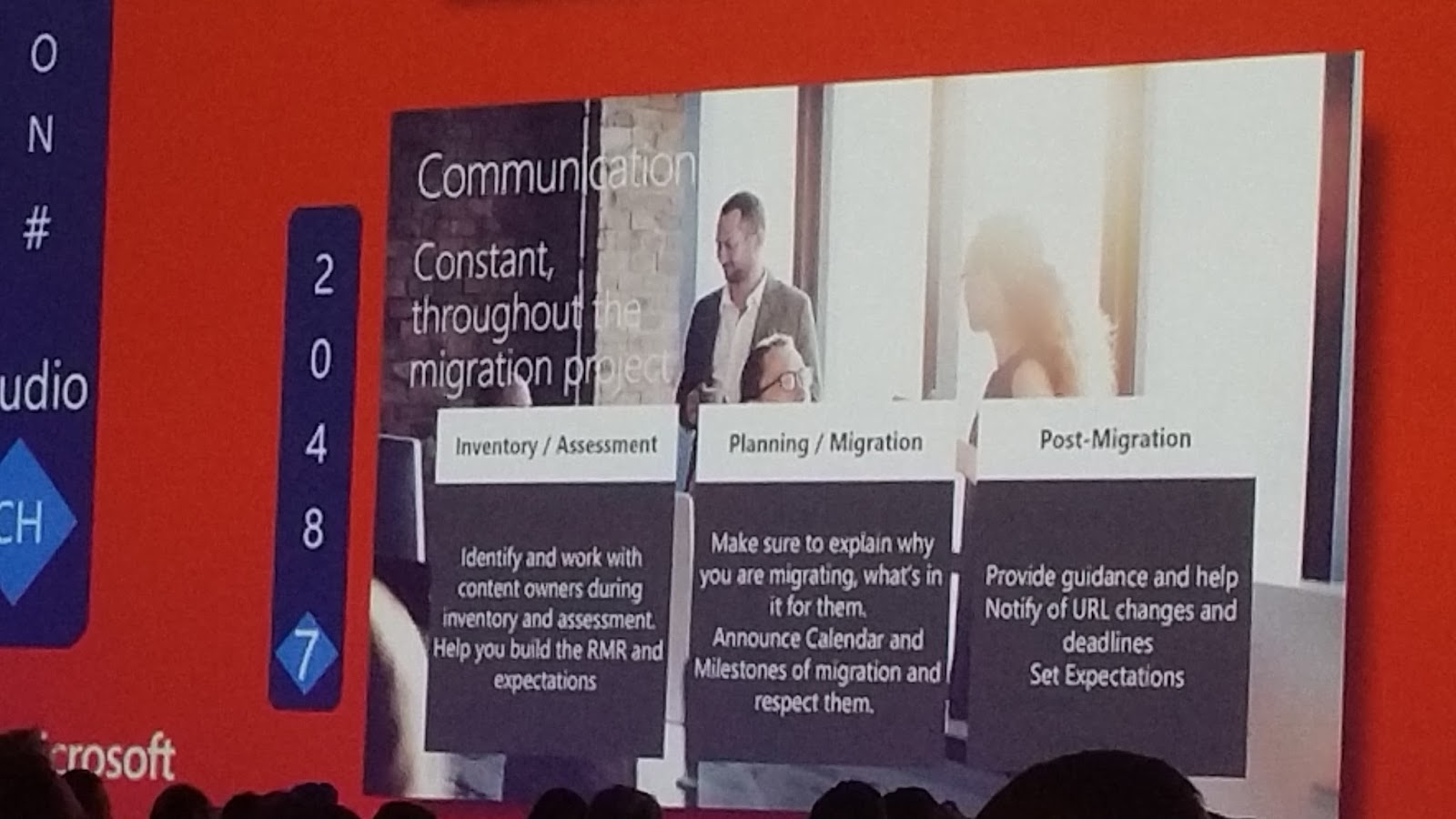
I had planned two sessions as my third session. I didn't figure which one to attend today. Instead I did take an early lunch in the Ignite Hang Out. This turned out to be a good idea since I got my phone charged, I had a nice couch and ok food. With a pair of headset connected to a remote receiver I could also zap between 10 livefeeds from current running sessions at Ignite. I did mostly follow session on monitor 7. The agenda was slightly out of my hardcore areas, but the speaker was really engrossing. Much of the topics could however easily be transferred to any other project involving end users.

3/5 part of the large screen in the Ignite hang out
My personal wireless sound receiver/zapper

Session 2048 turned out to have a good speaker - I need to see this on demand later on
After my lunch I attended a really good session held by Nikolay Muravlyannikov on the topic "Plan for Skype for Business cloud connectivity with Microsoft Office 365". Nikolay was very detailed in his presentation of the two types of connectivity with Cloud PBX and he shared a lot of experience and information. Time well spend!
Nikolay starting his presentation
One of many good slides from Nikolay.
My fourth(?) and last session today was the hardcore depdive "Deploy Cloud Connector Edition with Microsoft Office 365" held by Kerneel Bullens. This session gave an end-to-end description of an CCE Appliance installation. The session was well seasoned with practical tips and tricks from years operating in the MS UC field.
Session from Kerneel is about to start - during his presentation he was constantly walking and talking :)
A good slide from Kerneel describing all the acronyms used within the profession
With such a great line of sessions today I decided to drop my planned Theater session for the benefit of some relaxing in the sun. Time to charge the body for tonights Ignite Attendee Celebration in Centennial Olympic Park! Microsoft had even put om a great troubadour in the park outside the congress center. I did also use some time discovering the surroundings after 4 days mainly inside the Georgia World Congress Center.

Just as I imagined...
The WCC surroundings 
Centinel Olympic park in the front with the Skyline

Downtown
Childrens Museum... Is it the Gravesite?
Entering the camp...
Barbequeue...
The crowded campsite


Thank you Microsoft for a day filled with good sessions, a great camp party with some live banjo music and Tennessee rock from The Delta Saints!