Showing posts with label Windows. Show all posts

Tuesday, December 6, 2022

HP Connect for Intune, Part2: BIOS Authentication

This is part 2 in my series of blog posts covering HP Connect for Intune. The first post covered how to get the BIOS patched to the latest release. Today I cover the BIOS authentication, which is an important aspect of managing, controlling and securing Windows devices. If the BIOS can be accessed without authentication, a local or remote user may be able to disable basic security features, perhaps introducing malware early into the startup process that Windows may not protect against.  


The ultimate goal is to have a security boundary covering all aspects from chip to cloud. An UEFI BIOS is the chip containing the hardware start-up code and many settings that should be secured prior to booting into a Windows Operation System. We will manage the BIOS security limiting setting changes only to users or administrators with knowledge of the authentication mechanism. 

Please note: This is not a sponsored post!

Wednesday, November 30, 2022

The new Microsoft Store Experience

There is a new integration available between Microsoft Intune and the Microsoft Store for managing app installations from the cloud. This allows admins to easily browse, deploy and monitor applications. The new feature is powered by WinGet, the new windows package manager. I will explore this new feature in this blog post.

Intune has for a long time been great at getting policies and aps on to devices. The challenge has been to get new applications ready for provision in Intune. Whit this new feature, Independent Software Vendors (ISV) can publish and maintain their packages directly to this solution. This will ease the process and the burden of application management. 


With direct access to the apps in Intune, they can easily be made available fast and easy for user's self-service through the Company Portal. This is perfect for locked down environments where users have no local admin rights on their computers 

Thursday, September 29, 2022

Branding your tenant and managed endpoints

A clear brand builds identity and affiliation. Microsoft 365 and Endpoint Manager has a rich set of tools for customizing your brand into the products. This will look nice and integrated, and it will help the end users detect security attacks. Let's take a deep dive into the possibilities associated with branding your tenant and endpoints!


A brand is a name, term, design, symbol or any other feature that distinguishes one company's good or service from those of other companies. Brands are used for recognition, creating values and identification. A brand is the sum of all expressions by which an entity (person, organization, company, business unit, city, nation, etc.) intends to be recognized.

With a workforce spread all over the modern hybrid workplace, it is more important than ever to spread the love of the company's brand. This blogpost will focus on how your brand can be incorporated to Microsoft 365 and all endpoints by Microsoft Endpoint Manager.

Friday, September 2, 2022

Unboxing: Philips P-Line 499P9H 49" DQHD SuperWide 32:

When spending hours, days, months and lifetime in front of a computer, a good monitor is essential for the workplace. Personally I prefer large monitors with huge resolution to get enough space to work efficiently with Microsoft 365, Endpoint Manager, scripting and automation. Traditionally I have used 3 to 4 monitors lined up. I will now share my experience after migrating to one single superwide screen. will it fulfill my needs and expectations out of the box, or do I need to do some hacks?

Please note: This is not a sponsored post!

The Philips 499P9H Hard Facts

The monitor I am installing is the Philips P-Line 499P9H 49" DQHD UltraWide 32:9 Curved which is like two full-size QHD monitors in one with its 5120x1440 resolution. It has a built in USB-C docking station and a pop-up webcam supporting Windows Hello!


Monday, July 25, 2022

Autopilot - Device deadlock between two tenants

After wiping a Windows10 Autopilot device from Microsoft Endpoint Manager, we got welcomed to the correct tenant by name and logo. When signing in with a current licensed user, we got the message saying "That username looks like it belongs to another organization. try signing in again or start over with a different account". Time to troubleshoot!

The background for the wipe was to repurpose the device for a new user. 


Windows Autopilot is managed and maintained by Microsoft in a backend database that associates hashes with customer tenants. This time I got a schizophrenic device dealing with two tenants.

Wednesday, July 6, 2022

HP Connect for Intune, Part1: BIOS Update

To be certain we have a secure system from chip to cloud, it is fundamental to boot device from a trusted BIOS - often referred as secure boot. HP Connect for Microsoft Endpoint Manager is a cloud application designed to ease the management of UEFI BIOS on supported HP systems. This blog post will cover updating the BIOS on HP devices using MEM.

We need to have control of the boot environment of our managed devices

Please note: This is not a sponsored post!

Tuesday, July 5, 2022

Fortinet VPN Profile distribution with MDM

Fortinet Document Library has a documented routine for distributing the FortiClient application with Intune to Microsoft Windows. This routine is working Ok, but it is missing information on how to distribute the VPN profiles to the client. This will be the topic for this post.

Installation of the FortiClient application

Please read and follow the document in Fortinet Document Library covering the topic of configuring the FortiClient application in Intune. During this routing you need to download the current FortiClient VPN client and start the downloaded EXE file to download the actual MSI installation. This could be wise to do in a Windows Sandbox environment. You will find the MSI file in the newest folder with {randomguid} name under %localappdata%\Temp\.

After this routine has been setup and you have the app distributed to a group and installed, you will find the application available in the system tray on the devices.
FortiClient without VPN profile

The problem here, is the missing VPN profile for connecting your client to the service.

Tuesday, June 28, 2022

Install printers from AD printserver on AAD joined computers

When you go from a traditional IT operation model to modern based on Azure AD and Endpoint Manager, you will have a migration period with resources in both camps. Typically, endpoints first go to the cloud while well-established services lag behind. 

This does not have to tie the endpoints to the ground. You can move your computers to pure Azure AD join, and still have access to on-premises services in Active Directory as long as the identities are hybrid. 

Some tend to use Hybrid Azure AD Join (HAADJ) since they have some legacy traditions of device and application management. HAADJ can thus be tempting, but in the long run it will give more headache than pleasure. The best approach is to move the endpoints to pure Azure AD Join devices and then put more effort into adapting to the new operational environment offered by Microsoft Endpoint Manager.

Printers and print servers are one example of services that tends to be strongly attached to the premises, even though there are great alternatives in the cloud with Microsoft Universal Print or 3rd parties like Printix. With the hybrid identity signed in to the Azure AD joined Windows device, you can also use the existing Active Directory joined print server. I have created a Powershell script which can be used with Microsoft Endpoint Manager to distribute printers on a print server to Azure AD joined computers. This can be a great approach to make the move to the cloud more resilient, even though you will lose much of the borderless functions from a pure cloud-based print solution.

The script is available on my GitHub

Saturday, June 25, 2022

Windows 11 - Customize the Start menu layout

I believe the workday can be a tad less cluttered if certain stuff have a fixed placement. In a managed environment there might be interesting to have a customized start menu layout for all users giving a default set of pinned apps in a fixed order. This blog post will walk you through the routine of setting this up on Windows 11 by use of Microsoft Endpoint Manager.

Note: A customized start menu layout overwrites the entire existing layout. A partial locked layout like offered on Windows 10 is not available on Windows 11. The layout can be changed by the user.

Create a JSON settings file

Set up your preferred Start menu layout on an existing Windows 11 computer. Pin the apps you like on the start menu and arrange the order of these apps.
Configure a preferred start menu layout on an existing Windows 11 device


Start Windows Powershell and export the configuration to a JSON file.

Friday, June 24, 2022

Windows 11 - Custom theme with MEM

If your company has a strong branding profile, you might be interested in assigning a custom desktop theme pack to your Windows 11 computers reflecting your brand. I have put together a simple routine for distributing a deskthemepack with Microsoft Endpoint Manager.

Design your preferred theme

Use the Settings app on a Windows 11 computer to design your preferred desktop theme. After setting a preferred background, sounds, colors and mouse cursors, you can save this as a named theme.

You now have this as a theme on your computer which can be exported for sharing. Save this as a file on your computer.

Tuesday, June 21, 2022

Rename computers with countrycode in Intune

During an engagement at a customer there was a demand of having all computers in Endpoint Manager/Intune renamed to a naming standard including the two character ISO country code from the device owner followed by the serial number of the device. This was solved by using Graph API in a Powershell script running in an Azure Runbook.

The mission

The mission is to have all Windows devices in Microsoft Endpoint Manager follow a specified naming standard giving the device a unique name consisting of a country code and the device serial - ie: NO-132435465768. The solution must address existing and new devices.

The challenge with this design is related to compiling a device name consisting of the country code found at the user owning the device and the serial found on the device it self. I have found examples online for renaming endpoints, but these did not get hold of the country codes from the user to use as part of the new device name. Some of these examples include:

New devices - autopilot profiles


During the initial phase of this project, I did design a configuration for Autopilot allowing the devices to start out with the correct device name upon the initial onboarding. This was based on several group tags matched with corresponding AutoPilot profiles. A specialized menu was built in order to ease the hash collection and at the same time have the group tag specified.

image
Menu used for selecting country code when getting the hardware hash code

This did work as expected for new computers. The CSV hash file got a Grouptag specified pr. device based on the operators choice when collecting the hash. When uploaded to Intune, the Grouptag did match with an Azure dynamic device group which in turn was targeted towards the corresponding autopilot profile setting the correct name on the device.

Although this was a full-blown technical solution, it didn't live up to the expectations of easy implementation from the first line helpdesk. The setup was therefore reversed leaving one common autopilot profile for each and every windows device in the tenant.

Existing devices - renaming with script

Initially this was thought as a one shot run to rename existing devices. As the first phase of naming new machines during Autopilot was neglected, the challenge is somewhat extended to do renaming of devices on a regular basis. This has led to a Powershell script running in an Azure Runbook on a schedule once pr. day.

Pseudo code

The script has a hash table with current countries. The script will recure the country list selecting all users belonging to each country and further on list each device belonging to those users. Attributes from the user gives access to information about the country, while attributes from the device gives information about the serial number. The script takes into account the maximum length of 15 characters for computer names. This gives the fundaments for renaming the computer to the given naming standard. A rename will be initiated if the existing computer name differs from the standard.

Azure App Registration

The script authenticates through an Azure App Registration which has the following Microsoft Graph API application permissions:

  • DeviceManagementManagedDevices.PrivilegedOperations.All
  • DeviceManagementManagedDevices.ReadWrite.All
  • Directory.Read.All
  • User.Read
The app secret for the app registration is created with powershell in order to have extra life time:
    $startDate = Get-Date
    $endDate = $startDate.AddYears(9)
    $ObjectID = 'XXXXXXXX-XXXX-XXXX-XXXX-XXXXXXXXXXXX'
    $aadAppsecret01 = New-AzureADApplicationPasswordCredential -ObjectId $ObjectID -StartDate $startDate -EndDate $endDate
    ($aadAppSecret01).Value

Azure Runbook

The TenantID, ClientID and ClientSecret from the app registration are stored as encrypted variables in the Azure Runbook.
Encrypted variables stored in the runbook

The runbook does have most of the modules loaded already, except for the Microsoft.Graph.Authentication module which has to be added from the Gallery.

The script can now be added, published and linked to a schedule in the runbook. The script is available on my Github, and it has some comments throughout the code describing the process.

<#

  .NOTES
  ===========================================================================
   Created on:      09.05.2022
   Created by:      Simon Skotheimsvik
   Filename:        MEM-ChangeOfComputerNames-Runbook.ps1
  ===========================================================================
 
  .DESCRIPTION
    This script uses the Graph API to bulk rename Windows devices. It can for
    example be used in a scenario where autopilot default naming has been used
    and a new standardised naming convention has been agreed upon. This Script
    will use the Country Code from the owning users Azure Account. It can be
    modified to use other user variables as well.

    The script is designed to run unattended in an Azure Runbook.
     
  .EXAMPLE
    MEM-ChangeOfComputerNames-Runbook.ps1

#>

$GLOBAL:DebugPreference="Continue"

$Countries = @{
    Norway = "NO"
    Vietnam = "VN"
    Brazil = "BR"
    Chile = "CL"
    Croatia = "HR"
    India = "IN"
    Italy = "IT"
    Poland = "PL"
    Romania = "RO"
    Singapore = "SG"
    Canada = "CA"
}

# CONNECT TO GRAPH WITH AZURE APP-REGISTRATION STORED AS ENCRYPTED VARIABLES
$TenantId = Get-AutomationVariable -Name 'Computer_Rename_TenantID'
$ClientId = Get-AutomationVariable -Name 'Computer_Rename_ClientID'
$ClientSecret = Get-AutomationVariable -Name 'Computer_Rename_ClientSecret'

# Create a hashtable for the body, the data needed for the token request
# The variables used are explained above
$Body = @{
    'tenant' = $TenantId
    'client_id' = $ClientId
    'scope' = 'https://graph.microsoft.com/.default'
    'client_secret' = $ClientSecret
    'grant_type' = 'client_credentials'
}

# Assemble a hashtable for splatting parameters, for readability
# The tenant id is used in the uri of the request as well as the body
$Params = @{
    'Uri' = "https://login.microsoftonline.com/$TenantId/oauth2/v2.0/token"
    'Method' = 'Post'
    'Body' = $Body
    'ContentType' = 'application/x-www-form-urlencoded'
}

$AuthResponse = Invoke-RestMethod @Params

$Headers = @{
    'Authorization' = "Bearer $($AuthResponse.access_token)"
}

# Connect-MgGraph with Token in order to be able to post a computer renaming
$connection = Invoke-RestMethod `
    -Uri https://login.microsoftonline.com/$TenantId/oauth2/v2.0/token `
    -Method POST `
    -Body $body
 
$token = $connection.access_token
Connect-MgGraph -AccessToken $token

write-output "Authentication finished"

############################################################
# ROUTINE FOR RENAMING USERS AUTOPILOT DEVICES
############################################################

foreach ($CountryCode in $Countries.keys) {
    write-output "Working on country $CountryCode"
    $Country = $CountryCode
    $CountryCode = $($Countries[$Country])
    $MaxSerialLength = (15 - $CountryCode.get_Length())-1 #Max 15 characters allowed in devicename. Calculate length of serial# part.
    $userList = $Null

    # Get all users with the current country code. Use paging in order to get more than 999 which is max pr query
    $UsersURL = 'https://graph.microsoft.com/v1.0/users?$filter=startswith(country,'''+ $Country +''')&$top=999'
    While ($UsersURL -ne $Null) {
        $data = (Invoke-WebRequest -Headers $Headers -Uri $UsersURL -UseBasicParsing) | ConvertFrom-Json
        $userList += $data.Value
        $UsersURL = $data.'@Odata.NextLink'    
    }

    # Get all managed devices for each user
    foreach ($User in $UserList) {
        $upn = $User.userPrincipalName
        write-output "- Focus on user $upn"
        $DeviceList = $Null
        $deviceURL = 'https://graph.microsoft.com/v1.0/users/'+ $User.userPrincipalName +'/managedDevices?$filter=startswith(operatingSystem,''Windows'')'
        $DeviceList = (Invoke-RestMethod -Uri $deviceURL -Headers $Headers).value
        $NoOfDevices = $DeviceList.Count
        write-output "- $NoOfDevices device(s) found"

        foreach ($Device in $DeviceList) {
            $CurrentDeviceName = $Device.deviceName
            write-output "--- Focus on device $CurrentDeviceName"
            $OS = $Device.operatingSystem
            $DeviceID = $Device.id
            $FullSerial = $Device.serialNumber

            # Max 15 characters allowed in devicename - Some devices have to long serialnumber
            if ($FullSerial.get_Length() -gt $MaxSerialLength) {
                $DeviceSerial = $FullSerial.substring($FullSerial.get_Length()-$MaxSerialLength)
                write-output "---- Serial too long - shortened!"
            }
            else {
                $DeviceSerial = $FullSerial
            }
            # Calculates new devicename in format NO-12345678
            $CalculatedDeviceName = $CountryCode.ToUpper() + '-' + $DeviceSerial
           
            # Virtual computers have the text "SerialNumber" as serialnumber...
            if (($CurrentDeviceName -ne $CalculatedDeviceName) -and ($DeviceSerial -ne "SerialNumber")) {
                write-warning "---- Device $CurrentDeviceName needs to be renamed to $CalculatedDeviceName"
                # Calculate graph api url's
                $Resource = "deviceManagement/managedDevices/$DeviceID/setDeviceName"
                $GraphApiVersion = "beta"
                $URI = "https://graph.microsoft.com/$GraphApiVersion/$($Resource)"

                $JSONPayload = @{
                "deviceName" = $CalculatedDeviceName
                }

                $convertedJSONPayLoad = $JSONPayload | ConvertTo-Json
               
                #Send change to Graph.
                Invoke-MgGraphRequest -Uri $URI -Method POST -Body $convertedJSONPayLoad -Verbose -ErrorAction Continue
            }
            else {
                write-output "---- $CurrentDeviceName will not be renamed"
            }
        }
    }
}


Verify the results

When running the script, all outputs can be found in the logs, and all renamed computers are logged as warnings:

Feedback from the script with renamed computers found as warnings

This is reflected on the device in the Microsoft Endpoint Manager:

Device waiting to be renamed

As with other renaming requests in Microsoft Endpoint Manager, it requires the device to reboot before all registers (AzureAD, Intune, AutoPilot, Device) are up to date.

Device rename confirmed in the portal

Summary

This routine will effectively and automatically rename devices on a given schedule as long as the app secret is valid. The script can be altered to mix and match variables from user and device in order to create the corresponding device name for your naming convention. You can for example use information from the user like department, company, region, postalcode as a part of the computername.

No extra charge for the mistakes - solution shared as it is - use it at your own risk.

Thanks for reading - please share and comment.


Friday, April 21, 2017

Feil tidsangivning i Trio Agent under Windows 10

Ved innkommende samtaler viser Trio Agent dato og klokkeslett for når samtalen kom inn. Du kan også se dato og klokkeslett for tidligere samtaler fra innringer om du er innlogget i Ekspedient og har på visning for Oppgaveinformasjon. Ved Windows10 kan det forekomme at visningen her er på 12-timers format.

Etter overgang til Windows 10 har flere kontaktet meg med tilbakemelding om at klokkeslettene i Trio Agent vises som 12-timers format selv om operativsystemet for øvrig er satt opp med 24-timers klokke. I Trio Agent vises dette ved at "a.m." og "p.m." er med i tidsangivingen på følgende vis:
Klokkeslett på 12-timers format i Trio Agent kjørende på Windows 10
Etter litt leting i Windows 10 ble det funnet at dette kunne la seg løse ved å følge følgende prosedyre:

Fjern AM/PM-symbol på følgende sted i Windows 10

  1. Gå til Windows Innstillinger og videre Dato og Klokkeslett.
  2. Trykk der på Tilleggsinnstillinger for dato, klokkeslett...
  3. Velg så Endre dato-, klokkeslett- eller tallformater
  4. Gå så til Flere innstillinger...
  5. Under fanen Klokkeslett finner du nå to felter for AM-symbol og PM-symbol. Disse må slettes.
Etter å ha lagret innstillingene over her og restartet Trio Agent så fikk vi riktig tidsangivelse i Trio Agent under Windows 10:
Her er klokkeslett på 24-timers format som forventet
Legg gjerne igjen en kommentar under her dersom du har hatt tilsvarende erfaringer.

Wednesday, September 28, 2016

MSIgnite 2016, Day2

I am back at the hotel room after day two at Microsoft Ignite 2016 in Atlanta. Better knowledge to the buildings and a looser schedule gave a lower number on the pedometer related to day one. A day full of impressions deserves some notes along with my "photographic" memory.

It was crowdy in the hallways after breakfast. Some people was smart enough to take the outside promenade between the buildings. Unfortunately I was stuck in the queue for a while.

Nice weather and noe queue outside... but I was walking inside today
I had picked several sessions for this morning that collided in time. The choice felt on the panel discussion "Improve Office 365 Adoption: top 10 ways" since I recognized one of the speakers from a session on day 1. The discussion gave some good ideas which I hope can be useful in coming projects.
Panel discussion about top 10 ways to improve Office 365 adoption
My second session was "Dive into Project Rigel and the Skype for Business Meeting Device Portfolio" by Group Manager for Skype for Meeting Devices in Microsoft - Ilya Bukshteyn. This was a very interesting session on the new possibilities in the Skype Meeting Experience. We got the historical backdrop for the project, a detailed walkthrough of the process towards the new system and presentation of all partners involved in the project. There was performed a live demo of the impressive and intuitive system (one-click-join experience, attached presentations in meeting invite added to presentation bucket, connect local computer to present or project, easy to start adhoc meetings/calls etc) I hope to be able to see and work with a lot of these technologies in the meeting rooms in the near future - from small huddle rooms all the way to large conference rooms.

Ilya had a huge number of equipment on stage for his live demo
 
My third session today was called "Migrate to the Cloud - Skype for Business Online". The presenters Sean Wilson and William Haberkon did cover workloads to move, how to connect an on-premises deployment to the cloud and new features in moving to the cloud like meeting migrations or managing tenants that span multiple regions to ensure the highest media quality.
Migration paths to Skype for Business Online covered in this session.
Skype for Business online now supports the new Multi-Region enabled state
set-msoluser -PreferredDataLocation was demonstrated live in the session
My fourth session at Ignite 2016 Day 2 was named "Introduce Windows Server 2016 into your environment" held by Jeffrey Woolsey. A level 200 session that rushed through many of the new features spanning from better Time Server, more secure DNS, improved sign-on experience, stronger authentication, stronger ID protection, shielded VMs, Containers, Nano servers, software defined networking/storage and even more. A nice overview of the new server from an inspiring speaker.

More details from Microsoft on the new server can be found here.

Jeffrey Woolsey talking about the new Windows Server 2016
TimeSync - a small, but important component in multi-site/national companies
A phased approach related to Time Server when implementing WinServer 2016
Remember to sync the Time server with a trusted source
Containers was presented in different scenes and variations
My last session for the day was named "Dig into the Skype Operations Framwork". This session was held by Bryan Nyce, a great speaker. SOF is a comprehensive guide and toolset for implementing and managing a reliable and cost-effective communication service based on Skype for Business. The framework is pretty fresh (presented at WPC earlier this year), but are continuously evolving. I can't wait to start study the SOF from microSOFt.
One main quotation from this presentation
During the day I got notified through twitter that I had missed a great Skype for Business session held by Andrew Bybee on the topic "Build native cloud apps for Skype for Business: Skype Developer platform overview". It is not directly related to my operations, but there was given interesting information and demonstrations on the new Trusted Application API for the cloud. I guess this means that third party applications providers pretty soon can start develop their solutions for cloud pbx integrations (callcenter and switchboard providers like Trio Enterprise, Competela and likewise). These inputs combined with other inputs so far in this conference (day 2:5) makes a clear picture on where things should be run in the future. Thanks to Matt Landis for twittering the news from this session!

At the end of the day I had some time in the large EXPO hall where I did consult some expertise related to ongoing projects. It is really appreciated that Microsoft puts people with knowledge, experience and influence into their showcase area! Today I got precise and accurate answers to a couple of projects of mine involving hybrid configurations between on premises installations and cloud. I even got a pretty interesting talk with D'Arcy Salzmann from the Hololens strategy and product team which described a pretty interesting use of the Hololens together with Skype that would have been fun to test with a customer.
Polycom PTZ camera and Control screen (prototype) for the Skype Room System
Crestron Control screen (prototype) for the Skype Room System
Exploring the Surface Hub. Would love to have these for a huddle room at work...
...even though I am a mobile worker.


My phone did decharge pretty quick today as well. I had a powerbank, but that didn't last long. Long time experienced surviver made me improvise with the stuff I had and found that my Surface did provide power through the USB port even though it wasn't running. This gave me the following hack of my Microsoft Ignite bag:
Charge cable through headphone port of the Microsoft bag made the surface a giant UPS for my phone.

No giveaways today - only pure knowledge!
And by the way - I did remember lunch today, but it was to late - they were empty...

Now it's time to catchup with the mailbox with my dual-monitor-hotel-room-system based on Surface, iPad and duet display!


Tuesday, September 1, 2015

The migration from Workstation to Surface

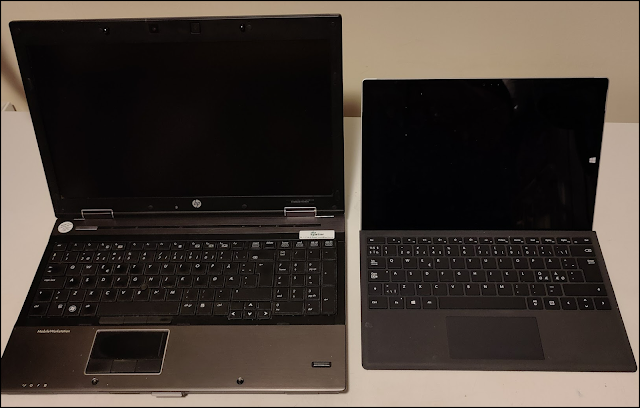
I have always sticked to high end, expensive, heavy and noisy laptops in the workstation genre. Recently I decided to test out a more lightweight tool and exchanged my HP Elitebook 8540w with a Microsoft Surface with Windows 10 Enterprise. Here are some experiences from this travel.


The physics

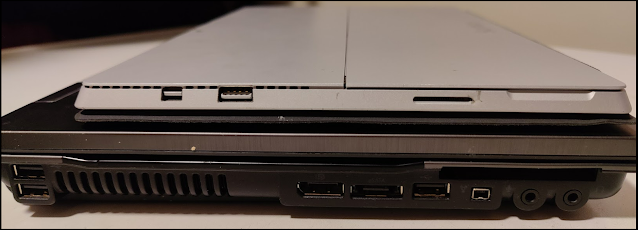
When changing from the Elitebook to the Surface I did miss the built in SIM card, the numeric keypad, the full-size keyboard, the DVD unit, a bunch of USB ports and the fingerprint reader. At the same time I did loose a lot of heavy weight, both on the computer itself, but also at the power supply! The new Surface Pro 3 is the one with the highest technical specification, but it is still a light weighted unit. I do believe that the external power supply unit for my old workstation was heavier than the new Surface device.
The Surface is smaller, but it is lacking the connections I have been used to on my workstation

The keyboard

I was kind of skeptical to the new keyboard. It seemed to be of a poor quality, but it has surprised me in a positive way. It is great to use in my daily consultancy work out at customers where the keys feels good and responsive and the trackpad is Ok. I had to learn a couple of new keyboard shortcuts (screenshot etc), but that was not a problem - #neverstoplearning! It is also easy to remove the keyboard from the device giving me a super handy and powerful tool for field work.
Don't underestimate this keyboard - it is actually pretty ok

The monitor

I like the monitor a lot. It has a lovely resolution with great colors, and not to forget - it is a touch monitor. The touch function has been used more than I could ever imagine. I use it for scrolling, zooming and navigating. The touch screen in combination with the pen gives me a whole new integrated way of using my Windows device.

The missing interfaces

As mentioned, I was kind of skeptical to the missing interfaces. I have been used to have a built in SIM card, numeric keypad, full-size keyboard, DVD unit, fingerprint reader and a bunch of USB ports. The new Windows Surface device had one (1) USB port! But - I am willing to give this a test drive! After all when I am at my office (at work or home), the device is connected to docking stations with external devices compensating the peripherals, and in fact I can't remember the last time I really needed a DVD unit. As far as the SIM card, I can always share internet from my cell-phone whenever I am out of service for a decent Wi-Fi network.

My conclusion

After some time of usage, my personal conclusion is positive - very positive. The device is a high performance device serving me well. It is a light weighted device allowing me for a lighter commute. 

I notice that more of my work is relating towards cloud work, and the Microsoft Surface seems to be a perfect match. Normally a travel to the cloud means a lot of noise, but not this time - the noise level has been significantly reduce on my switch from the Elitebook to the Surface device!