Senior Cloud Consultant at CloudWay - Microsoft 365 specialist.
Highly certified within Microsoft 365, Intune, EMS, Azure, Teams, Cyber Security and more.
Versatile background, good documentation, technical flair, keen interest and ability to improvise are good ingredients in projects I’m involved in.
The Modern Workplace supports the demand to work from anywhere. There are companies today operating mainly from home offices. How much technology is acceptable to use for hiding in the home office?
I have been experimenting with knowledge from the photography business and technology from youtuber's in the gaming industry to enrich my Microsoft Teams meetings from my home office. The goal has been to have high quality video conferencing with a simplified and quick operation. This attempt is presented in the following low cost one shot video.
Technical rundown
There has been some questions related to this setup on Twitter, so I decided to make a technical rundown of the setup.
Lights
In order to have a good picture with studio portrait quality, I need good lights. After exploring different options I ended up ordering an Elgato Key Light Air as my main light. This choice was a combination of price and lamp design and features. This lamp has a great stand, it connects wirelessly to my computer, it is cool and brightness and color can easily be controlled.
In addition I am using some Phillips Hue light sources. I have one color light source behind my monitors for ambience light, and in the ceiling I have a ledbar from IKEA which has been equipped with Hue GU10 white ambience light bulbs. I have created some scenes in the Hue system for my video conferencing setup. Two of the GU10 lights in the ceiling are pointed at the green screen trying to make an even light all over the screen. These lights has a cold temperature set in order to make the color of the green screen stand out. I have also pointed one of the GU10 hue lights towards my head to make a hair light for background separation. This light as a warmer tone set. I don't think I need any more fill lights for my current setup.
Workplace with hue ambient light
Workplace with hue ambient light and key light
Hue fill lights for green screen and hair light for background separation
Hue ambient light behind monitor
The Hue scene used for videoconferencing.
Green screen
I have considered several types of green screens. Based on my experiences in studio photography I wanted a solid type to avoid folds which in turn can be troublesome related to lighting and chroma key processing. I had my eyes on the roll-up versions from Elgato and Nebula. These are around 148 cm wide, and they seem easy to fold up an down. These can easily be found cheap on second hand webshops since there are a lot of fading youtube stars out there. I read some reviews and found them to require some floor space. They could in some circumstances also be wider. Some where experimenting with two of these to get enough width on the background - this is kind of tricky in order to get a perfect faded overlapping background.
I finally found the 190 cm wide Elgato Green Screen MT which can be easily mounted in the ceiling. This one will cover my entire bookshelf without taking up any space on the floor. I had some concerns related to the weight when mounted in the ceiling, but in practice this was not a problem. Unfortunately no Elgato Green Screen MT was found on second hand marketplaces, but it wasn't the most expensive one. When bought as new, I also got first class packaging and shipping. I certainly do not regret this choice.
Bookshelf and guitars with Green Screen MT rolled up in the ceiling
Bookshelf and guitars hidden behind Green Screen MT rolled down from the ceiling
Detail from the mounting of the Green Screen MT in the ceiling
Green Screen processing
In order to do a chroma key processing of the green screen, I am using the OBS Studio freeware. This is a software primarily made for streaming to Twitch, YouTube and other services. In this project I am using the VirtualCam function found in the Tools menu. This sends the output mix from OBS to Windows as a virtual camera driver and can therefore be selected as source in Microsoft Teams. The VirtualCam has been set to AutoStart.
Configuration of the VirtualCam in OBS
OBS-Camera selected as Camera in Teams - Settings - Devices - Camera
In OBS I have configured different scenes and scene transitions. Each scene can consist of a mix of several sources, including physical cameras attached to the computer, images, media sources and more. As a webcam I am currently using a Logi HD Pro WebCam C920. Inside OBS I have added a Chroma Key effect filter to this camera source in order to make a transparent background from the green screen. This combined with some environmental photos can make some exciting scenes. The OBS software has a lot of advanced opportunities, and you can easily find information and inspiration on this on YouTube.
1: Scenes, 2: Sources used in scenes, 3: Scene transitions, 4: Filters used on sources in scene
1: Add the Chroma Key filter, 2: Adjust the different variables, 3: Pay attention to the edge transitions
Filters
OBS has a rich pallette of options and third party plugins. One great valueadd to OBS studio is the StreamFX pluging which has a couple of great filters to enrich your setup. Alpha Gaming is giving a nice overview of this in his YouTube channel. I use the Blur filter from this package to add a small amount of blur on my background image. This technique can be used to imitate a picture with a shallow depth of view often seen by using DSLR's with pricy optics connected through Elgato Cam Link.
StreamFX Blur plugin applied to my background image
Props
When working on the different backgrounds, it is allways funny and effective to have props to put on your self in order to enhance the effect. A couple of examples in the following images.
Having a good time at my cottage
Having a good time at my home office, aka "jammekontor"
Having a rough time out in the field
Control Panel
In order to operate these technologies quick and easy, I am using a Stream Deck from Elgato. This system with all of its plugins has innumerable opportunities regarding automation and control. I have created many functions that support me throughout the day in the office.
Elgato Stream Deck located under my monitors
In order to easily do a Microsoft Teams meeting, I have set up a Multi Action button with 10 actionpoints [1: Launch OBS Studio, 2: Pause Spotify, 3: Set Hue scene for videoconferencing, 4: Turn on KeyLight, 5: Set Key Light temperature, 6: Set Key Light brightness, 7: Select OBS Scene, 8: Move Microsoft Teams to full screen, 9: Delay for 3s 10: Go to Calendar in Teams].
Configuration of the Multi Action button for starting a Teams meeting
Actions included in the Multi Action button for starting a Microsoft Teams meeting
In the same way I have created a Multi Action button with 4 actions to use when ending a Micreosoft Teams meeting [1: Play Spotify, 2: Set Hue scene for normal office work, 3: Turn off Key Light, 4: Minimize Microsoft Teams 4: End OBS Studio]
Actions included in the Multi Action button for ending a Microsoft Teams meeting
During a Teams meeting I have found it handy to have some special actions available. These are located in a separate folder containing a new set of buttons. Today I am using these to switch between the different scenes in OBS. These scenes includes different backgrounds, screensharing with talking head etc. I have also made a button for muting the microphone.
Stream Deck with OBS Scene controls and Mic mute
OBS Scenes with corresponding buttons for toggling sources on and off
Teams meeting with OBS VirtualCam
Teams meeting with OBS VirtualCam and Background Blur in Microsoft Teams
Teams meeting with OBS Scene in with screen sharing and talking head
The talking head challenge
I do experience some blured image quality on screensharing through OBS Virtual Camera plugin to Microsoft Teams meeting. I have tried to figure this out without any success yet. In a regular Teams meeting with VirtualCam, I don't think screensharing through OBS and VirtualCam is a good idea.
I have found a working setup for sharing your screen with a talking head directly to a Teams meeting. This requires multiple monitors. In my example I have a 3 monitor setup. This setup will give sufficient quality on the content shared into the meeting.
Monitor#1 is used as a stage, running OBS in fullscreen projection. I have a scene with content from Monitor#2 and a talking head overlay. I will share Monitor#1 into the Teams meeting.
Monitor#2 will be the workspace for content shared to the meeting. All content on this monitor will be shared to the meeting (powerpoints etc). A pro tip would be to place the cam and the workspace monitor in such a way that your head is looking inbound to the monitor in the shared window when working.
Monitor#3 is my Teams management monitor used to control the Teams meeting, OBS settings etc. This should be the main monitor for popups etc.
Three monitor setup for sharing screen with talking head into Teams
Right click in the preview and select Fullscreen Projector
Stream Timer
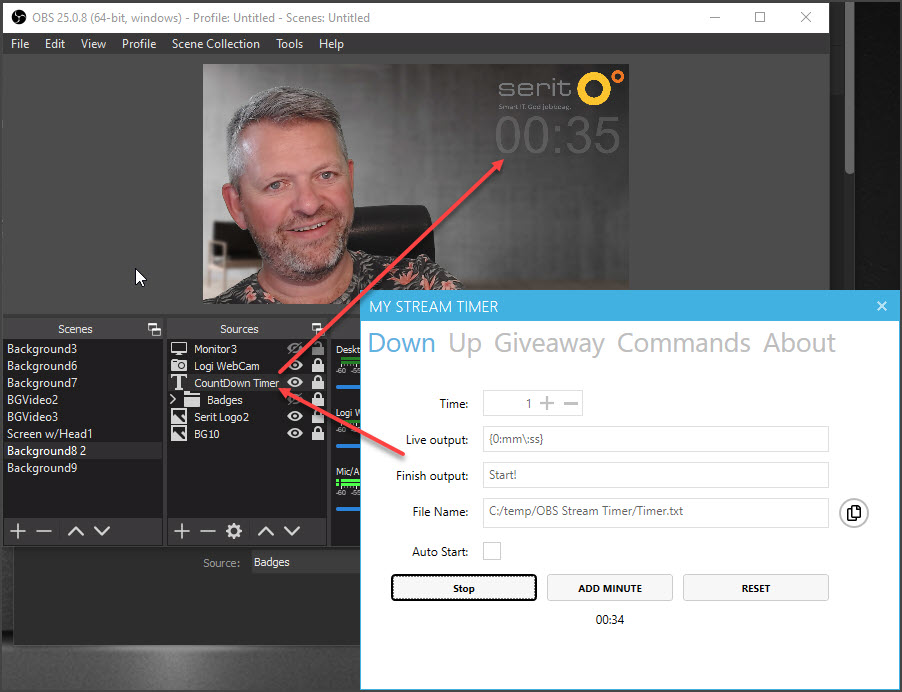
In some cases, a counter is desirable. This is often done with the help of a third party software updating a txt file which is added as a text layer in OBS. There are many free providers, some simple while others are more advanced. One example is http://www.mystreamtimer.com/ which can do both count down and count up in addition to have a leading text and a separate ending text. This can even be triggered directly from Stream Deck! Another simple one is the free Countdown Timer v2.0.
I got challenged by Ståle Hansen to include his Pomodoro powershell script into the Stream Deck. This has been testet and found Ok. I had some initial problems when using the "advanced launcher" plugin loading "C:\Windows\System32\WindowsPowerShell\v1.0\powershell.exe -file Start-SimplePomodoro.ps1". This powershell session didn't find the "presentationsettings" command. I had to use the "Super Macro" plugin instead. Now I have a separate button on my Stream Deck for launching 20 minutes of focus with no distractions.
Pomodoro powershell added as a button in my Stream Deck.
Alternative Pomodoro routine created with actions in Stream Deck
Embrava Busy Light
After the korona virus breakout, I have had my house full of three kids since the norwegian schools and kindergardens where closed. In order to let the kids know my working status at the home office, I have extended my home office setup with an Embrava Blynclight. This light indicates when I am "on air". This gives a better experience to my calls and meetings run from the home office during this pandemy.
Busy light on my monitor before it was moved next to the door leading to the home office.
PS! After a quick computer reset (windows autopilot), I had a problem connecting the blynclight to Microsoft Teams. This got solved after installing the Skype for Business client (the Office installation came without SFB client which I needed for customer support). Embrava support has investigated this issue and found that the Office 365 installation suite some times corrupting the registry keys required for Office Chat API interface. If such registry keys are corrupted then the Office Chat API interface won't work. A re-install or repair of the Office installation are often fixing this issue. In my case, the installation of the Skype for Business Client did. Embrava is working on a new driver version connecting directly to the Microsoft Teams server in order to get arround this problem. My guess is that they will use the Microsoft Graph API.
Snap Camera
Snapchat has lauched the Snap Camera application for Windows and MAC, bringing the magic of lenses to the video chats on PC & Mac. This can be used directly into Teams, and it can also be included in the OBS Studio. Could be kind of funny in some situations, but mostly annoying. It is also annoying that Snap Camera requires exclusive access to the webcams on your computer.
Webcamera as source
In the new Windows 10 2004 update (build 18995), it is possible for users to associate network cameras to their PC, enabling photo capture and streaming of video in camera applications. Currently Windows only supports ONVIF Profile S compliant cameras*, which are standards-compliant network cameras optimized for real-time streaming video capture. Windows provides support for discovery, pairing, configuration and streaming via WinRT APIs. These settings are described in this website. I can't wait to use a live webcamera as a source in my OBS setup!
Logitech Capture
Logitech Capture is an alternative software for managing multiple content, talking head etc. I have done some small tests, but it will not replace my usage of OBS studio. It does not integrate into the Elgato Setup, and the chroma key functions are poor compared to OBS.
Testing Logitech Capture.
Teams Customized Backgrounds
Microsoft is rolling out customized backgrounds as part of the native Teams experience. This means you now can replace the background directly in Microsoft Teams. You will find this option as part of the background blur in your Teams client. This is a nice lowcost feature, but it does not compare to a full green screen setup, and all the features you have in OBS studio - for instance add a background video.
Microsoft will sooon release the option to upload your personal images. You can however do this manually by copying your photos to the following folder: %APPDATA%\Microsoft\Teams\Backgrounds\Uploads\
Select background blur and pick your preferred background.
I have added a screenshot of my normal background with me present. Now I can walk away from the meeting but still be present :)
Use with other video systems
I have used this OBS Studio setup with the virtual camera plugin with other video systems as well - even Skype for Business. This proves that this setup is universal to all systems utilizing a webcamera on the computer.
End notes
Is this acceptable use of technology or is it overkill? Is this something you could imagine in your office or home office? Microsoft has announced a customized background feature in Microsoft Teams comming later this year. Could it be a good idea to paint a wall in your office green and install a key light for better quality during Microsoft Teams Meetings?
Telenor Samordnet Kommunikasjon gir deg ett samkjørt telefonnummer for mobil og Skype for Business - en løsning som mange verdsetter høgt. Med Trio får man en løsning for fraværsmarkering som mange verdsetter høgt. Integrasjonen mellom Trio, Telenor og Skype for Business gir også mye fin merverdi til alle plattformer, men det gir en utfordring knyttet til Telenor sin mulighet for å bryte gjennom en fraværsmelding.
Merverdi av integrerte løsninger
En integrert løsning mellom Telenor Mobilt Bedriftsnett (MbN), Skype for Business og Trio Enterprise er en totalintegrert og god løsning som gir brukerne ett nummer uavhengig om man er på Skype for Business eller mobiltelefonen, det gir et sted å fraværsmarkere gjennom Trio og Sentralbord i Trio har full oversikt på tvers av de forskjellige taleplattformer. Øvrige kanaler og integrasjoner i Trio gir ellers merverdi inn i den totale løsningen. Kataloger vil være synkronisert mellom løsningen, og man vil ha mobilstatus i Trio og Skype for Business.
Vi drifter mange kunder som benytter Telenor Samordnet Kommunikasjon hvor de har dobbeltanrop fra Telenor MBN mobiltelefon inn til Skype for Business. Ved integrasjon mot Trio får de mulighet til å enkelt legge fraværsmarkering i Trio som så styrer Telenor MBN Status og Skype for Business gjennom Trio PresenceRouting/Forwarder.
Problemsituasjon i den integrerte løsningen
Den beskrevne integrerte løsningen fungerer meget bra - bortsett fra en ting: Trio VoiceGuide sammen med fraværsmarkering mot Telenor MbN fungerer ikke spesielt godt ettersom Telenor sin mulighet for å taste 4 for å bryte gjennom fraværsmarkeringen havner direkte i Trio VoiceGuide i stedet for på mobiltelefonen til vedkommende. For mange kunder er dette meget kritisk og faktisk en stor årsak til at brukere ikke benytter fraværsmarkering, noe som undergraver mye av merverdien Trio skal tilføre bedriften.
Ett eksempel på problemsituasjonen kan skisseres som følger:
Bruker legger inn fravær i Trio (eller har definert MobilPhoneBusy=Busy i TrioForwarder på SfB).
Fraværet markeres i Skype for Business gjennom Trio PresenceRouting/Forwarder.
Fraværet markeres i Telenor Mobilt Bedriftsnett.
Samtale inn til brukeren blir nå stoppet i Telenor Mobilt Bedriftsnett sin Personlig Svartjeneste som følge av at fraværet i Trio har styrt MbN profilen til Møte el.l.
Innringer får mulighet for å taste 4 for å likevel bli satt gjennom til brukerens mobil.
Samtalen går nå videre til dobbeltanropet mot mobil og Skype for Business.
Samtalen blir så besvart av Trio Voiceguide pga fraværsmarkeringen.
Samtalen kommer ikke frem til mottaker og innringer blir frustrert.
Løsningsforslag
Den beskrevne problemsituasjonen har jeg fått raportert inn flere steder. Mange omgår dette med å ikke benytte fraværsmarkering i Trio og setter heller fraværsmarkeringen direkte* i Telenor MBN. Andre ønsker ikke å ha integrert løsning med fraværsmarkering på tvers av løsningene. Dette er en uheldig effekt som undergraver merverdien som naturlig kan hentes ut av de integrerte løsningene.
*Å sette fraværet direkte i Telenor MBN løser ikke alltid problemet ettersom dette fraværet synkroniseres inn mot Trio.
Løsning i Trio?
Kan dette løses i Trio ved små tilpassinger?
Kan vi se for oss en tilpassing som gir mulighet for å definere en type «NoVoiceGuideOnAbsence» setting i Trio for de brukerne som har denne mobilintegrasjonen?
Da ville samtalen kunne gå videre til mobiltelefonen i 2-1-1 over her fremfor å bli fanget av Trio VoiceGuide slik den nå blir i 2-1-2.
Det kan kanskje være fornuftig å løse dette i forbindelse med Trio Routing Service (PresenceRouting) slik at brukeren kan sette valget på/av?
Tenkt valg for brukerstyring
Tenkt valg for sentral styring
Eller er dette en urealistisk tanke ettersom den gir andre effekter i Trio og Skype for Business som ikke kommer frem i disse løse tankene?
Løsning i Telenor MBN?
Det enkleste stedet å løse dette på vil være ved en tilpassing av Telenor Mobilt Bedriftsnett sin svartjeneste. Problemet hadde ikke eksistert om vi hadde mulighet for å definere at bruk av tastevalg 4 for å bryte gjennom et fravær kun skulle gå til mobiltelefonen og ikke følge dobbeltanropet. Samtalen ville da kun gått ut mot mobiltelefonen i punkt 2-1-1 av det beskreven eksempelet over uten å havne i Trio VoiceGuide fellen på 2-1-2 som følge av dobbeltanropet.
Eksempel på definisjon av ringemønster og samtidig ring mellom mobil- og SfBnummer i Telenor MbN.
Forslag til ny konfigurasjon som gir mulighet å definere ringing kun på mobilen når man bryter gjennom fravær.
Problemet som er beskrevet er reelt for mange og løsningen er nok etterlengtet av like mange. Jeg er usikker på hvor det er mest hensiktsmessig å legge inn løsningen - det kan jo være at begge plattformer kan ha ønske av å gjøre noe i denne forbindelse ettersom de gjerne har mulighet for slike typer integrasjoner mot flere parter.
For meg kan det synes som at det er enklest og mest nærliggende å løse dette i Telenor MbN plattformen ettersom en fraværsmarkering gjerne indirekte sier at man ikke er tilgjengelig på det apparatet man har dobbeltanrop mot (som typisk er "kontortelefonen"). Det mest fornuftige vil være å sette samtaler videre kun mot mobiltelefonen når innringer velger å bryte gjennom fraværet.
Har du tanker eller ideer rundt dette kan du gjerne legge igjen kommentarer under her. Kjenner du noen som kan løse dette på ett eller annet nivå kan du gjerne dele dette innlegget med de. Skulle det komme til nye tanker eller oppdateringer av løsningene som adresserer disse problemene vil denne saken bli oppdatert.
15,5 hour since I left the hotel. Almost 13.000 steps on my pedometer. A day full of great sessions topped with an awesome Microsoft Attendee celebration. It's late, but I need to preserve some memories.
First session first: "Enabling mobility with Skype for Business" held by Praveen Maloo. This session did review all the features across the different mobile plattforms with lots of good demos on the Skype for Business mobile apps and integrations with the Outlook app, iOS 10 and more.
Praveen Maloo starting his SfB Mobile Client session
The new iOS10 integrations are demonstrated - here is a SfB call answered from the lock screen
My second session was Brian R. Ricks talking about "Configure Skype for Business for Skype Room Systems, Project Rigel and Surface Hub". This in-depth session described how to properly setup the overall environment in order to have best best possible experience from Microsoft Surface Hub, Project Rigel and Skype Room Systems.
Brian on stage with a humoristic intro to his good session
First hand information shared by Brian
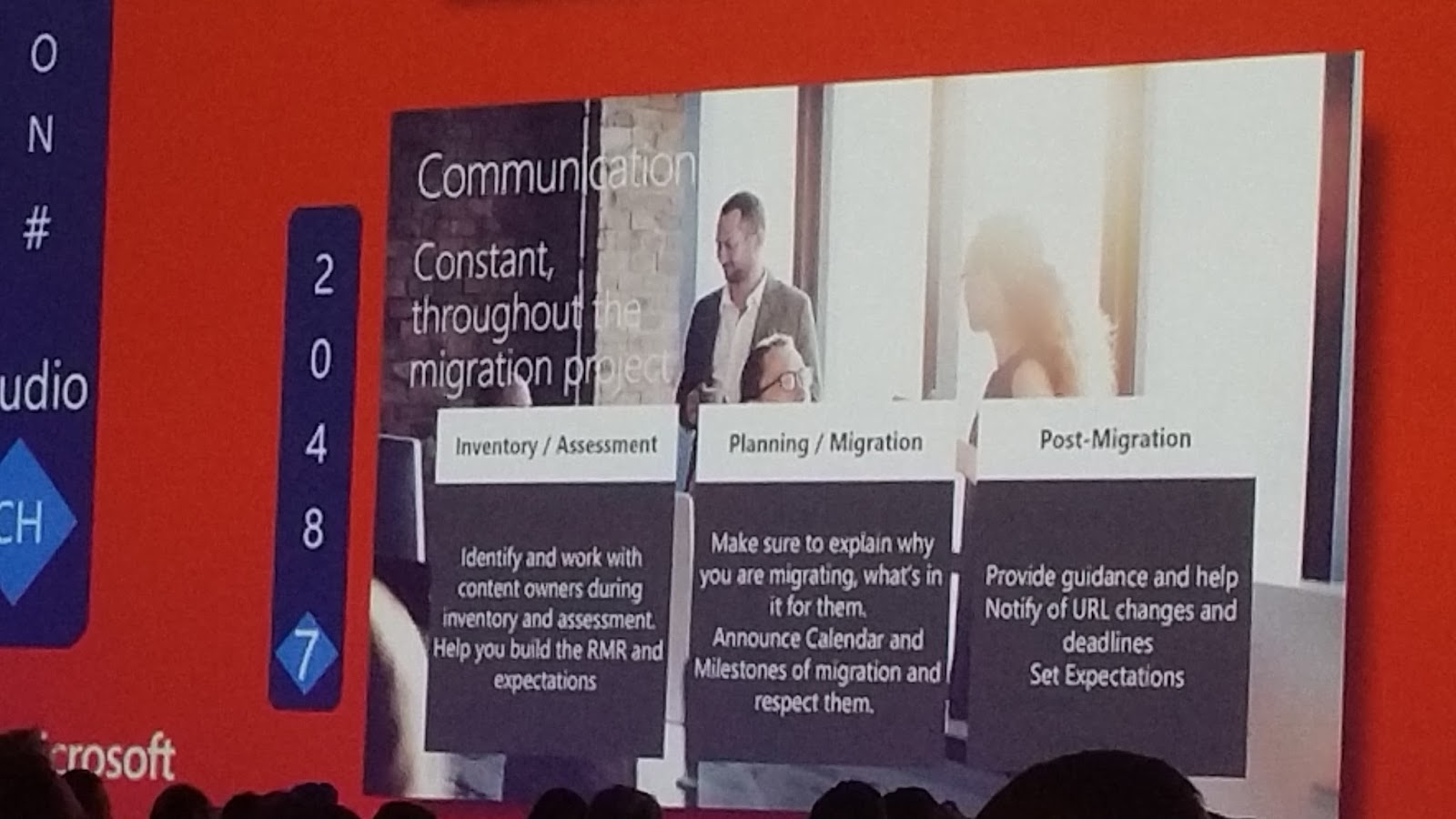
I had planned two sessions as my third session. I didn't figure which one to attend today. Instead I did take an early lunch in the Ignite Hang Out. This turned out to be a good idea since I got my phone charged, I had a nice couch and ok food. With a pair of headset connected to a remote receiver I could also zap between 10 livefeeds from current running sessions at Ignite. I did mostly follow session on monitor 7. The agenda was slightly out of my hardcore areas, but the speaker was really engrossing. Much of the topics could however easily be transferred to any other project involving end users.
3/5 part of the large screen in the Ignite hang out
My personal wireless sound receiver/zapper
Session 2048 turned out to have a good speaker - I need to see this on demand later on
After my lunch I attended a really good session held by Nikolay Muravlyannikov on the topic "Plan for Skype for Business cloud connectivity with Microsoft Office 365". Nikolay was very detailed in his presentation of the two types of connectivity with Cloud PBX and he shared a lot of experience and information. Time well spend!
Nikolay starting his presentation
One of many good slides from Nikolay.
My fourth(?) and last session today was the hardcore depdive "Deploy Cloud Connector Edition with Microsoft Office 365" held by Kerneel Bullens. This session gave an end-to-end description of an CCE Appliance installation. The session was well seasoned with practical tips and tricks from years operating in the MS UC field.
Session from Kerneel is about to start - during his presentation he was constantly walking and talking :)
A good slide from Kerneel describing all the acronyms used within the profession
With such a great line of sessions today I decided to drop my planned Theater session for the benefit of some relaxing in the sun. Time to charge the body for tonights Ignite Attendee Celebration in Centennial Olympic Park! Microsoft had even put om a great troubadour in the park outside the congress center. I did also use some time discovering the surroundings after 4 days mainly inside the Georgia World Congress Center.
Just as I imagined...
The WCC surroundings
Centinel Olympic park in the front with the Skyline
Downtown
Childrens Museum... Is it the Gravesite?
Entering the camp...
Barbequeue...
The crowded campsite
Thank you Microsoft for a day filled with good sessions, a great camp party with some live banjo music and Tennessee rock from The Delta Saints!